Hi guys welcome back to footage 2 you, Hope you all are doing grate. Are you struggling to create professional looking graphics for your social media? If yes, then you’re at the right place because in todays article I am going to share with you the 10 powerful ways to use Canva for your content creation journey. The tricks which I am going to share with you will not only save your hours of work but also will make your content look like it was made by a professional designer.
And the best part is that almost all of these features are available in the completely free version of Canva. So, if you are ready to level up your content game in 2025 then let’s begin!
1) Magic Write
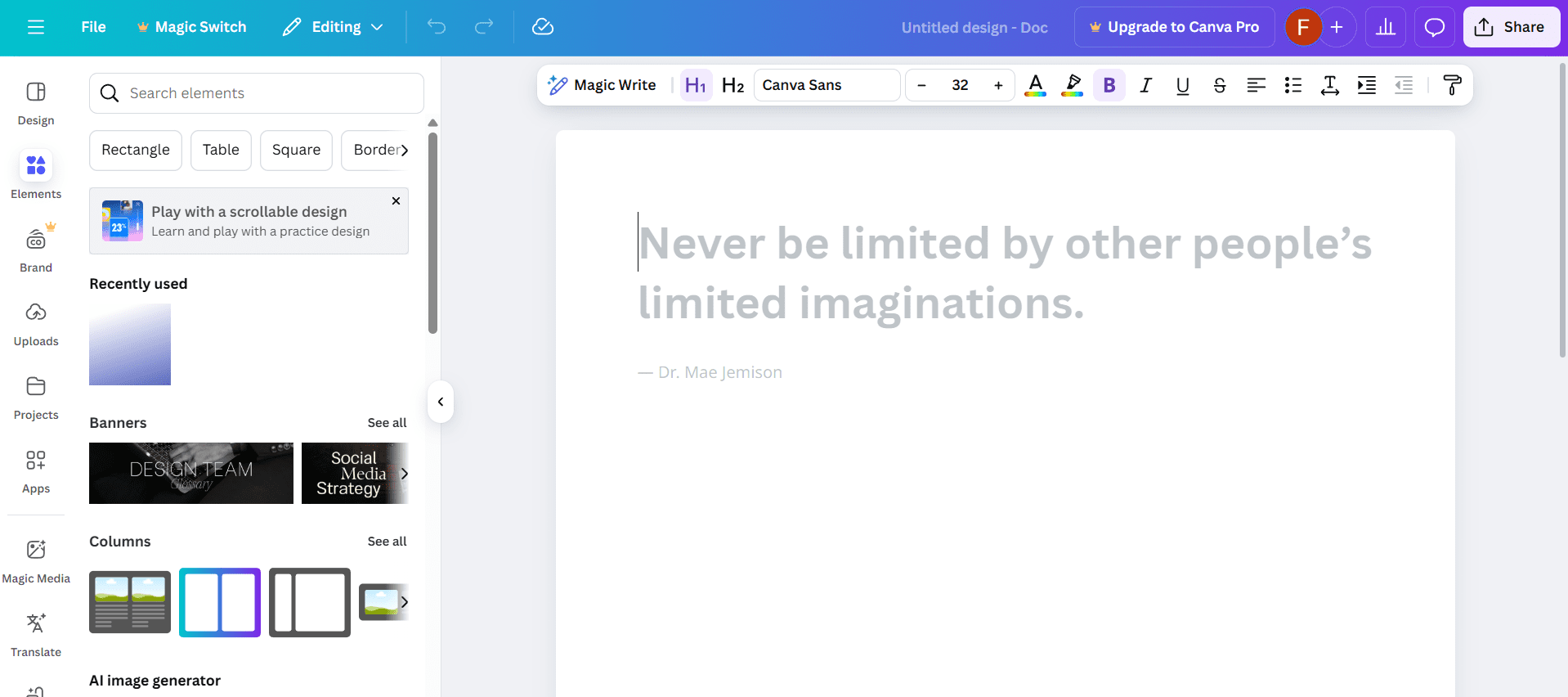
Canva’s Magic Write AI is your only weapon against creator’s block. It is built right into the design editor only, so you don’t need to switch between the different apps.
How to use it
To use magic write first open a new design in Canva, click on the “Apps button” go to the left toolbar and search for “Magic Write.” Once you open it, you can give it commands. For example, type “Write a 30 second Instagram Reel script on the benefits of morning meditation” or “Give me 10 catchy titles for a YouTube video about budget travel”
In just few seconds, you’ll get a ready-to-use script or a list of ideas you asked. This tool is perfect for brainstorming, writing video descriptions, or even creating short social media captions. It’s like having a creative assistant for you that never sleeps or ask for leave.
2. Beat Sync

Spending hours manually cutting your video clips to the beat of a song is a thing of the past now after canva beat sync tool, because Canva Beat Sync tool does all the hard work for you with just in one click.
How to use it:
To use this tool, All you have to do is just upload your video clips to the Canva editor. Then, add a song from Canva’s huge free music library or upload your own. After that now, select your video clip into the canva and look for the “Beat Sync” option in the top toolbar. Choose the song you want to sync to and select the sync intensity. Canva will automatically analyze the music and cut your video to match the beat perfectly. This is an absolute game changer for creating engaging Reels for your social media and youtube shots in minutes.
3) Background Remover
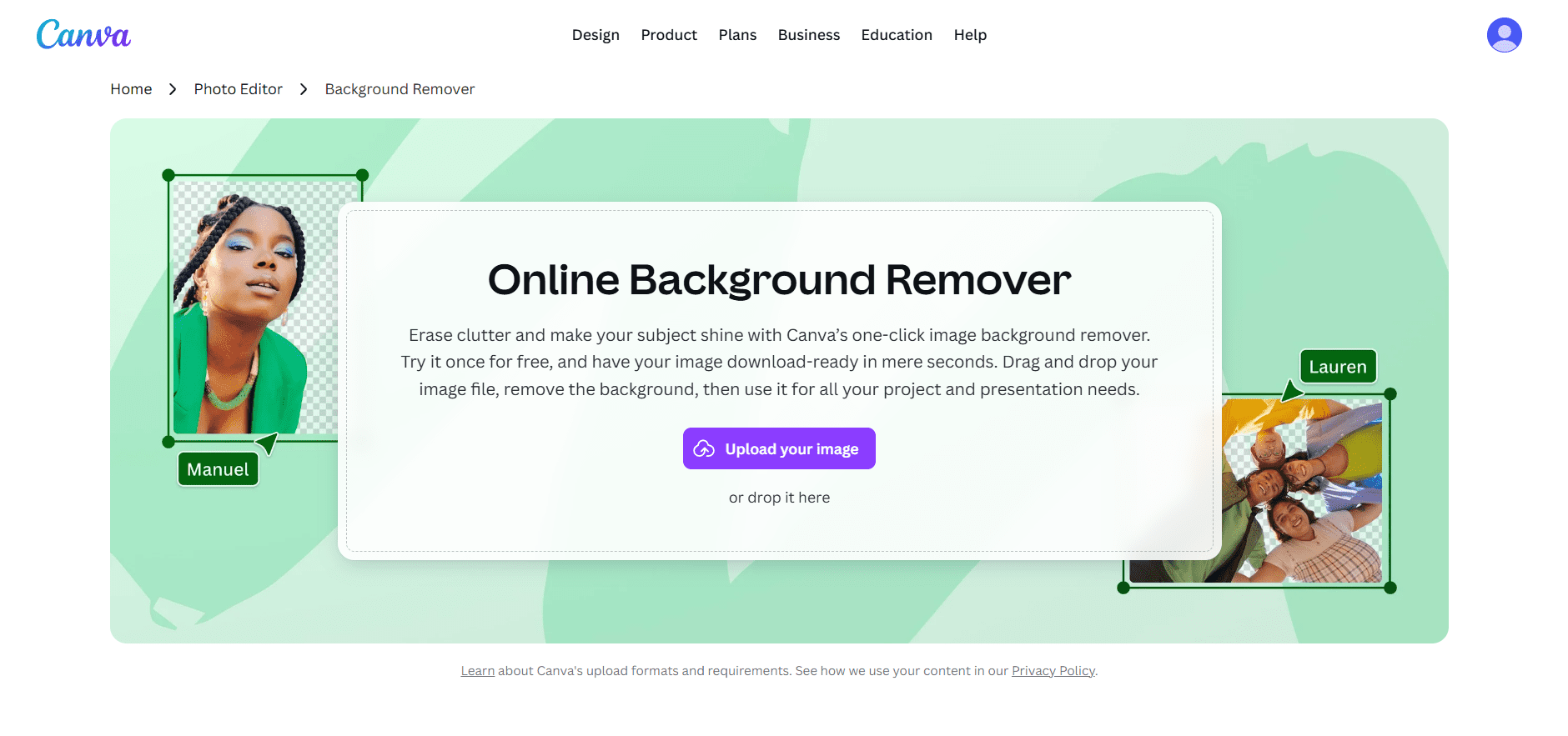
Now you don’t need Photoshop to remove image backgrounds anymore, Because Canva’s background remover is incredibly accurate and instant that dose job very well.
How to use it:
All you need to do is simply upload your photo or a product to your design. Click on the image, then select “Edit photo” from the top menu. Then, click the “Background Remover” tool. After that in just within two to three seconds your photo background is gone. Now you can place yourself on any cool background you want such as create a custom logos, or design professional product mockups. The best part this feature is free to use.
4) Brand Kit
As a content creator, having a consistent brand is crucial for you. The Canva Brand Kit is your all in one hub for your all your brand custom assets.
How to use it
If you have Canva Pro, you can set up your Brand Kit. Here, you can upload your logo, set your brand’s color palette (with the help of hex codes), and save your specific fonts. Whenever you create a new design, your brand colors and fonts are just one click away for you in your design canvas. This ensures your YouTube thumbnails, Instagram stories, and Pinterest pins all have the same professional and recognizable look without you having to remember the color codes every time whenever you create any post.
5) Content Planner
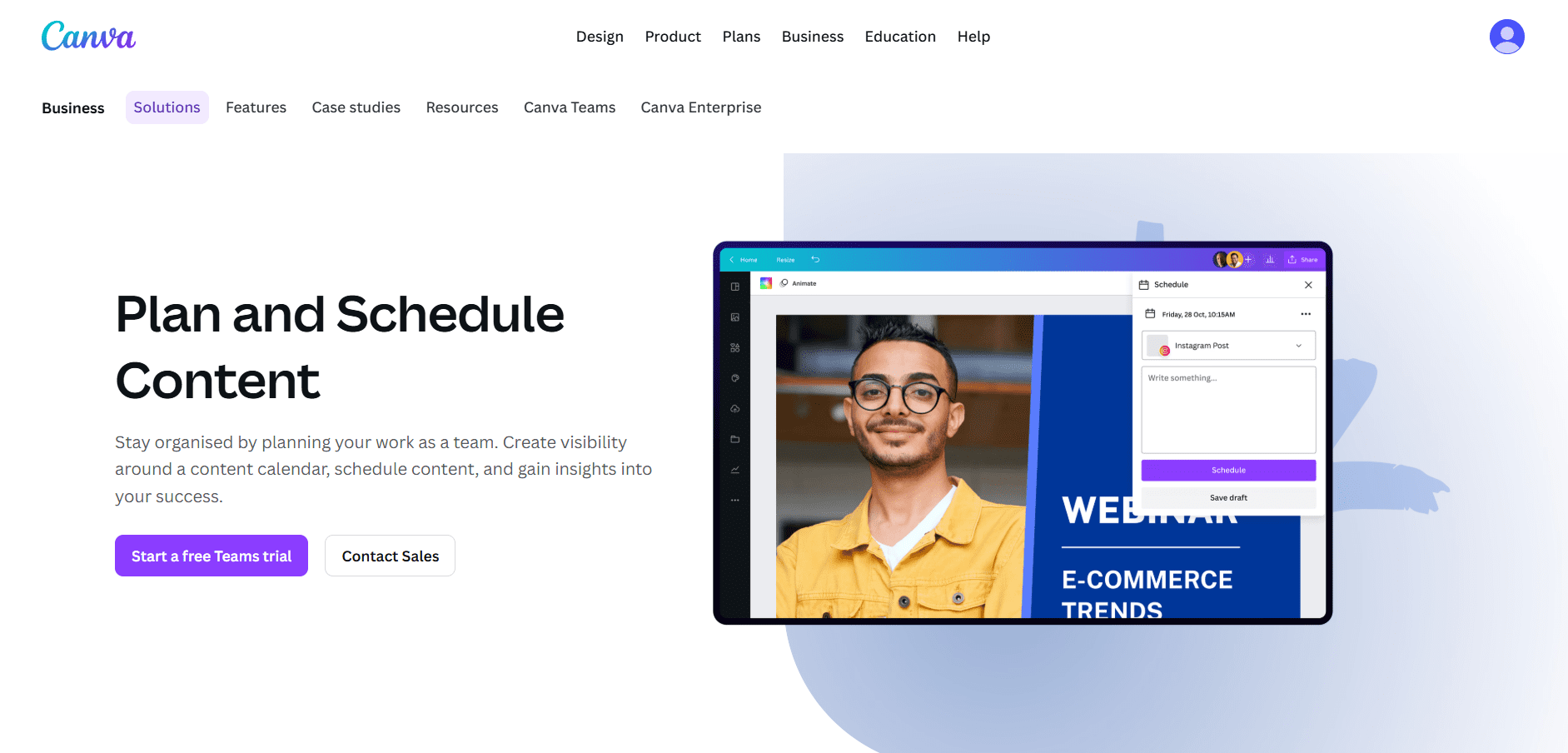
Canva also has a built-in Content Planner which lets you design and schedule your content for multiple platforms right from its dashboard.
How to use it
On your Canva home page, look for the “Content Planner” tab. Connect your social media accounts like Instagram, Facebook, Pinterest, and even LinkedIn. Now, you can create your design and instead of downloading it, click the “Share button” and then “Schedule.” Choose the date and time, add your caption, and hit schedule. Canva will automatically publish it for you. This feature alone will save you so much time every week.
6) Translate
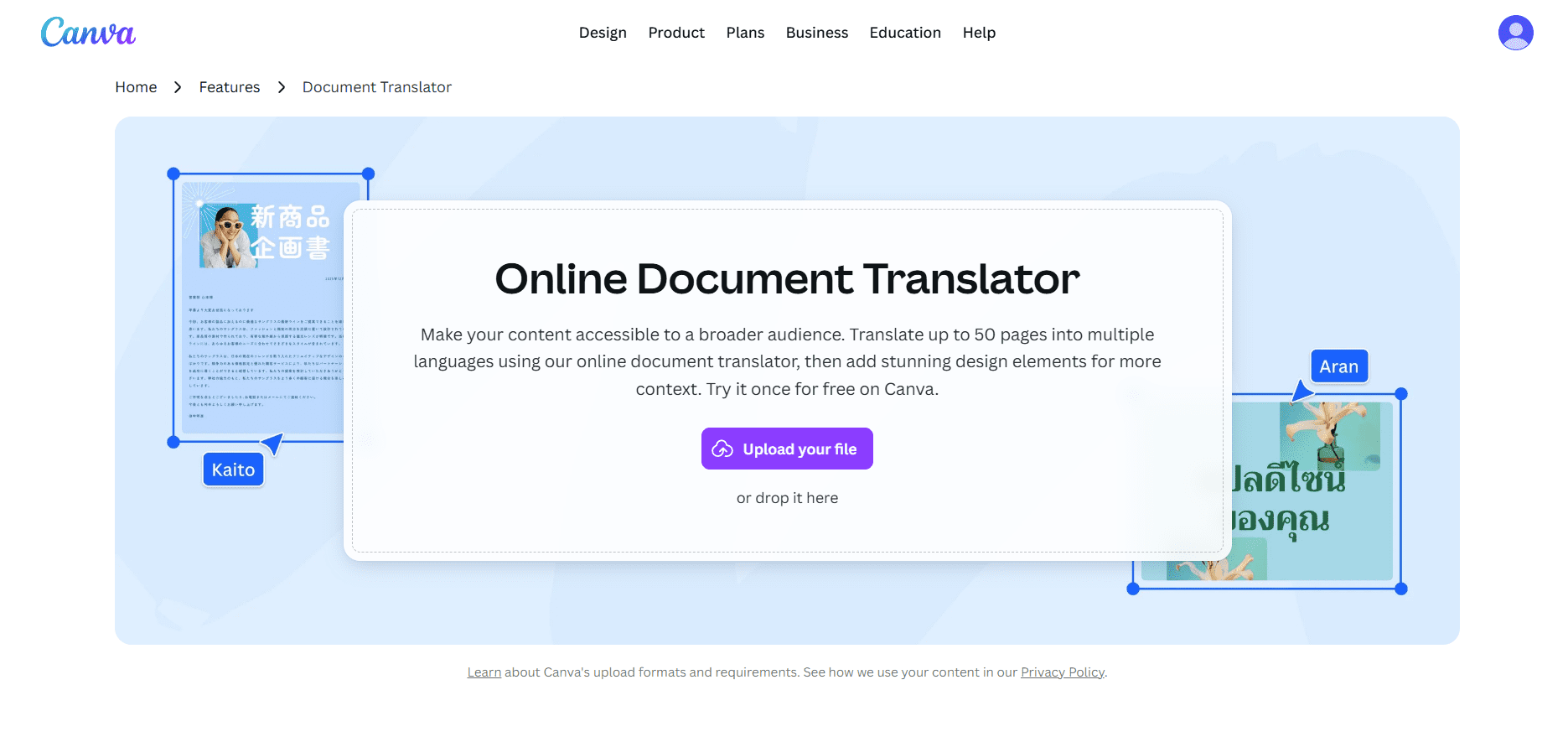
Want to reach viewers in different countries? Canva’s Translate app can instantly translate your entire design into over 100 languages.
How to use it?
After finishing your design, then go to “Apps” and search for “Translate.” Select the app, choose the language you want to translate to like Spanish, Hindi, or French, and click “Translate.” Canva will automatically create a new copy of your design with all the text translated. This is perfect for creating multi-language versions of your YouTube thumbnails, infographics, or social media posts to grow your international audience.
7. Animation Presets
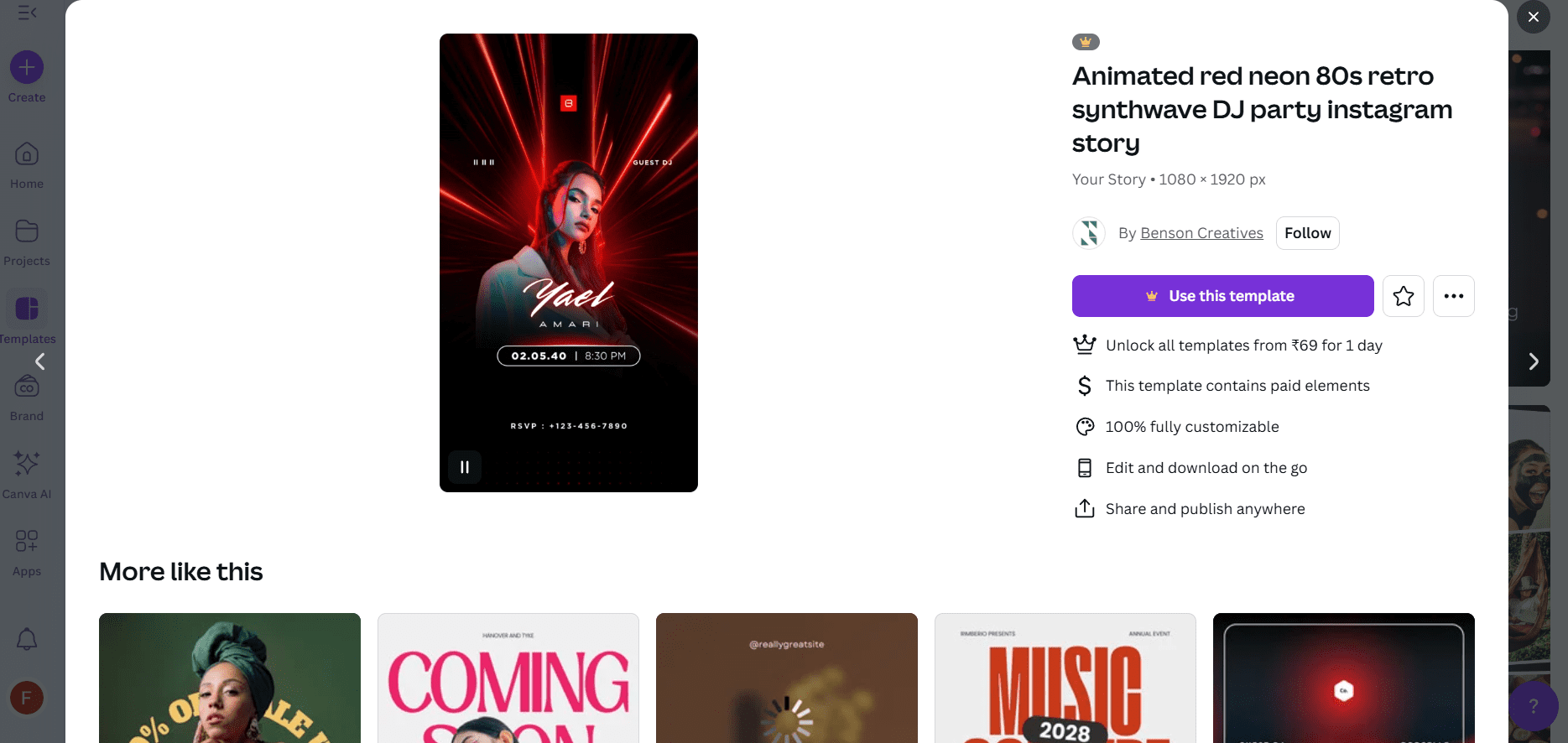
Static posts don’t grab much attention anymore. With Canva’s built-in animation presets, you can make any element in your design move with just one click.
How to use it
Click on any text box, image, or graphic in your design. Now, look for the “Animate” option in the top toolbar. Click it, and you’ll see a list of animation styles like “Fade,” “Pan,” “Block,” and “Float.” Just select one, and your element will now be animated. You can preview it right away. This is perfect for making your Instagram Stories more dynamic or creating eye-catching animated posts for LinkedIn and Facebook.
8. Video Editing
While it won’t replace advanced software like Premiere Pro for big projects, Canva’s video editor is perfect for quickly creating professional social media videos.
How to use it
Create a new video project. You can trim clips, split sections, and add multiple layers of video and images. You can also use the built-in stock video library, add text overlays with animations, and include a voiceover by simply recording your voice directly into the editor. It’s an all-in-one solution for creating simple explainer videos, promotional content, or edited social media clips without ever leaving your browser.
9) Print Products
As a creator, merch is a great way to build community and earn extra income. Canva allows you to design and order high-quality print products directly from them.
How to use it
From the Canva homepage, click “Create a design” and use the search bar to look for “T-Shirt,” “Phone Case,” “Mug,” or “Journal.” Use their templates or design your own from scratch. Once you’re happy with the design, you can order a sample for yourself or use their bulk ordering for your fans. It’s a seamless way to turn your creative designs into physical products.
10) Canva Docs to Content
This is one of the coolest features for 2025. You can write a blog post or script in a Canva Doc, and with one click, turn it into a video, presentation, or social media post.
How to use it
pen a new Canva Doc and write your content. You can even use Magic Write here to help you. Once you’re done writing, click the “Magic Switch” button at the top right. A panel will open where you can choose to convert your doc into a video, an Instagram post, a presentation, and more. Canva will automatically pull the text and headings from your doc and create a beautifully designed first draft for you. It’s the ultimate time-saver for repurposing content.
Conclusion
These are the ten tools that prove Canva is so much more than just a simple graphic design tool. I personally have tested and used each one of these features and tools to streamline my own workflow, and they rank among the most powerful and free resources for creators in todays time. From AI powered writing and automatic video editing to seamless scheduling and global translation, Canva in 2025 is your all in one content creation solution. Start using these Tips today and watch your productivity and your content quality gets pop in no time.